Sunday, March 17, 2024

All about Dropwizard Metrics

Dropwizard stands out as a favored Java framework for developing rest-based applications. Ensuring the observability of an application stands as a critical aspect for maintaining service continuity and stability. This directly impacts the end-user experience and, in many instances, revenue generation. The Metrics library simplifies the process within a Dropwizard application, enabling the collection of various system metrics alongside custom metrics. Additionally, it facilitates the authoring of health checks for the application.

To integrate metrics into a Dropwizard application, adding the following dependency is essential:

<dependency>
    <groupId>io.dropwizard.metrics</groupId>
    <artifactId>metrics-core</artifactId>
    <version>3.1.2</version>
</dependency>

Metrics Overview:

Metrics necessitate a metric registry to function effectively, which can accommodate numerous metrics.

private final MetricRegistry metrics = new MetricRegistry();

In a Dropwizard application, access to the metric registry and health check registry is available in the initialize method:

public void initialize(final Bootstrap<AppConfiguration> bootstrap) {
    metrics = bootstrap.getMetricRegistry();
    healthCheckRegistry = bootstrap.getHealthCheckRegistry();
}

Metrics are broadly categorized into:

  1. Meters:
    Meters gauge rates of events and track mean rates. They also monitor 1, 5, and 15-minute moving averages.
    private final Meter requests = metrics.meter("requests");
    public void handleRequest(Request request, Response response) {
        requests.mark();
        // ...
    }
    
  2. Gauges:
    Gauges provide a snapshot of a particular value at a given time. For instance, the number of pending jobs.
    final Queue<String> queue = new LinkedList<String>();
    final Gauge<Integer> pendingJobs = new Gauge<Integer>() {
        public Integer getValue() {
            return queue.size();
        }
    };
    
  3. Counters:
    Counters are a type of gauge that can be incremented or decremented, offering more efficiency than gauges.
    private final Counter pendingJobs = metrics.counter(name(QueueManager.class, "pending-jobs"));
    public void addJob(Job job) {
        pendingJobs.inc();
        queue.offer(job);
    }
    public Job takeJob() {
        pendingJobs.dec();
        return queue.take();
    }
    
  4. Histograms:
    Histograms track various statistical aspects of a data stream, including minimum, maximum, mean, median, and various percentiles.
    private final Histogram stockPrice = metrics.histogram(name(StockPriceHandler.class, "stock-price"));
    public void updateStockPrice(Request request, Response response) {
        stockPrice.update(request.getStockPrice());
    }
    
  5. Timers:
    Timers measure both the rate at which a piece of code is called and the duration of its execution.
    private final Timer responses = metrics.timer(name(RequestHandler.class, "responses"));
    public String handleRequest(Request request, Response response) {
        try(final Timer.Context context = responses.time()) {
            return "OK";
        } 
    }
    
    Alternatively, the @Timed annotation can be used:
    @GET
    @Path("sayhello")
    @Timed(name = "my-timed-metric")
    public Response sayHello(@QueryParam("q") @DefaultValue("%") String queryString) {
        return Response.ok().entity("Hello " + queryString).build(); 
    }
    
  6. Healthchecks:
    Health checks determine whether a service is healthy or not.
    public class DatabaseHealthCheck extends HealthCheck {
        public final static String NAME = "database-health";
        private final HibernateBundle<ApiAppConfiguration> hibernate;
    
        public DatabaseHealthCheck(HibernateBundle<AppConfiguration> hibernate) {
            this.hibernate = hibernate;
        }
        @Override
        protected Result check() throws Exception {
            if (hibernate.getSessionFactory().isClosed()) {
                return Result.unhealthy("Database session factory is closed");
            }
            return Result.healthy();
        }
    }
    
    Registration of the health check in the health check registry is necessary:
    environment.healthChecks().register(DatabaseHealthCheck.NAME, new DatabaseHealthCheck(hibernate));
    

These metrics play a crucial role in monitoring and maintaining the health and performance of applications.

Reporters play a crucial role in outputting metrics gathered by Dropwizard. There are several out-of-the-box popular reporters available, including console, CSV, SLF4J, Graphite, and Prometheus.

Here is an example of a console reporter:

ConsoleReporter reporter = ConsoleReporter.forRegistry(metrics).build();
reporter.start(10, TimeUnit.SECONDS);

Additionally, we can create our custom reporter to integrate with our monitoring system:

package example.monitoring;

import com.codahale.metrics.*;

import java.util.SortedMap;
import java.util.concurrent.TimeUnit;
import java.util.Map;

public class MyCustomReporter extends ScheduledReporter {

    public MyCustomReporter(MetricRegistry registry, TimeUnit rateUnit, TimeUnit durationUnit) {
        super(registry, "custom-metric-reporter", MetricFilter.ALL, rateUnit, durationUnit);
    }

    // This method will be called periodically by the ScheduledReporter
    @Override
    public void report(SortedMap<String, Gauge> gauges,
                       SortedMap<String, Counter> counters,
                       SortedMap<String, Histogram> histograms,
                       SortedMap<String, Meter> meters,
                       SortedMap<String, Timer> timers) {
        // Implement reporting logic here
        // Example: Print out all metric names and their values
        System.out.println("MyCustomReporter in action !!!");
        for (Map.Entry<String, Gauge> entry : gauges.entrySet()) {
            System.out.println("Gauge: " + entry.getKey() + ", Value: " + entry.getValue().getValue());
        }
        for (Map.Entry<String, Counter> entry : counters.entrySet()) {
            System.out.println("Counter: " + entry.getKey() + ", Count: " + entry.getValue().getCount());
        }
        // Similarly, report for histograms, meters, and timers
    }
    // Factory method to create an instance of CustomMetricReporter
    public static MyCustomReporter forRegistry(MetricRegistry registry) {
        return new MyCustomReporter(registry, TimeUnit.SECONDS, TimeUnit.SECONDS);
    }
}

MyCustomReporter myCustomReporter = MyCustomReporter.forRegistry(metrics);
myCustomReporter.start(10, TimeUnit.SECONDS); // Report every 10 seconds

I hope this information is useful. Please let me know if you have any thoughts or questions about it.

Reference: Dropwizard Metrics Documentation

Saturday, December 2, 2023

Java 17 Pattern Matching in Switch and Yield

 In Java switch statements are used instead of multiple if-else statements. Something like below

switch (day) {
case "Monday" -> System.out.println("Today is an monday");
case "Tuesday" -> System.out.println("Today is an tuesday");
case "Wednesday" -> System.out.println("Today is an wednesday");
case "Thursday" -> System.out.println("Today is an thursday");
case "Friday" -> System.out.println("Today is an friday");
case "Saturday" -> System.out.println("Today is an saturday");
case "Sunday" -> System.out.println("Today is an sunday");
default -> System.out.println("Invalid date");
}

There are multiple advantages of this we dont' need to write multiple nested if-else block

if ("Monday".equals(day)) {
System.out.println("Today is an monday");
}
else if ("Tuesday".equals(day)) {
System.out.println("Today is an tuesday");
}
......
else {
System.out.println("Invalid date");
}

Switch statements are there in java for a long back. over time it has evolved. Earlier Switch expressions are supposed to be numbers or enums. Case statements used to start with : and break need to be added to stop the overflow

switch (day) {
case "Monday": System.out.println("Today is an monday"); break;
case "Tuesday": System.out.println("Today is an Tuesday"); break;
.....
}

In Java 17 switch is enhanced. Before Java 17 switch started supporting string as expression type. In 17 the case key word can be followed with -> so that we dont need break any more.

case "Saturday" -> System.out.println("Today is an saturday");

we can have multiple levels in case.

case "Saturday", "Sunday" -> System.out.println("Its weekend");

We can return value from the case using yield

int dayOfTheWeek = switch (day) {
case "Monday" -> {
yield 1;
}
case "Tuesday" -> {
yield 2;
}
default -> {
yield -1;
}
};

In case expression we can try an instance of the operator or null check also

Object x = 0;
switch (x) {
case null -> System.out.println("x is null");
case Integer i -> System.out.println("x is an integer");
default -> System.out.println("x is of type "+x.getClass().getName());
}

These are still preview features to try this we need to enable it in our java env

java --enable-preview --source 17 <filename.java>

Please let me know your thoughts about this topic.

Reference

https://docs.oracle.com/en/java/javase/17/language/pattern-matching-switch-expressions-and-statements.html#GUID-E69EEA63-E204-41B4-AA7F-D58B26A3B232

Sunday, September 4, 2022

OCI function in golang connecting to autonomous database over TLS

 In this post we will discuss how to connect oracle cloud infrastructure function implemented in golang connect to the autonomous database. We will configure the adb on TLS, so that we don't need the client credential wallet for connection. If we need to connect over mtls still this post will give some idea but we need to stage the client credential in the function runtime container, this I may discuss in a different post. 

1. Configure ADB for TLS

We need to enable TLS connection in the autonomous database detail page. (More details).  

a) In adb detail page under the Network section enable the access control list, here I configured the allow-only ip addresses of a particular vcn should able to connect the adb.

 b) Set Mutual TLS authentication to not required, so that TLS connection will be allowed. 

2. Create a oracle function appliaction in the same VCN, which we configured  in above step (1. a), if we wish to run the function in private subnet then few more things we need to take care, details can be found here

3. Go lang function which will connect to ADB. 

we will use godror library to connect to ADB. A standalone golang program connecting ADB will be found here, the same concept we will use to write our function code. 

/**
* @Author Pallab (pallab.rath@gmail.com)
*/

package main

import (
"context"
"database/sql"
"encoding/json"
"fmt"
"io"

fdk "github.com/fnproject/fdk-go"
_ "github.com/godror/godror"
)

func main() {
fdk.Handle(fdk.HandlerFunc(myHandler))
}

func myHandler(ctx context.Context, in io.Reader, out io.Writer) {
db_user := "<db-user>"
db_pwd := "<db-pwd>"
db_host := "<db-host>"
db_port := "<db-port>>"
db_srvc := "<db-service>"

db_details := fmt.Sprintf(`user="%s" password="%s" connectString="tcps://%s:%s/%s"`, db_user, db_pwd,
db_host, db_port, db_srvc)
db, err := sql.Open("godror", db_details)
if err != nil {
fmt.Println(err)
return
}
defer db.Close()
rows, err := db.Query("select sysdate from dual")
if err != nil {
fmt.Println("Error running query")
fmt.Println(err)
return
}
defer rows.Close()
var resData string
for rows.Next() {
rows.Scan(&resData)
}
json.NewEncoder(out).Encode(&resData)
}

In this program, we need to provide db user, pwd, host, port, and service name. we can find the host port and service name from tls connect string. The tls connection string can be found on the Database Connection page.

4. Building and publishing the above function.

To build this function we need godror dependency, and this requires gcc compile to be present in build time env. So I created my custom build environment where gcc is installed, instead of the default fnproject/go:1.15-dev build image.

a) Create the build image docker definition (gofn_build.Dockerfile)

FROM oraclelinux:8
RUN yum -y install golang && yum -y clean all && rm -rf /var/cache

Then build this image using the below command

$ docker build -f gofn_build.Dockerfile -t gofn_build .

b) Create the runtime image docker definition (gofn_runtime.Dockerfile), in the runtime container godror need oracle instant client.

FROM oraclelinux:8
WORKDIR /function
RUN curl https://download.oracle.com/otn_software/linux/instantclient/217000/oracle-instantclient-basiclite-21.7.0.0.0-1.el8.x86_64.rpm --output oracle-instantclient-basiclite-21.7.0.0.0-1.el8.x86_64.rpm
RUN yum -y install oracle-instantclient-basiclite-21.7.0.0.0-1.el8.x86_64.rpm && yum -y clean all && rm -rf /var/cache
RUN rm -f oracle-instantclient-basiclite-21.7.0.0.0-1.el8.x86_64.rpm

Then build this image using the below comman

docker build -f gofn_build.Dockerfile -t gofn_runtime

c) Create the custom Dockerfile with below content, where we use build go function in the build conatiner we just created in above steps and create a image of our runtime image and the executable function.

FROM gofn_build as build-stage
WORKDIR /function
WORKDIR /go/src/func/
ENV GO111MODULE=on
COPY . .
RUN cd /go/src/func/ && go build -o func
FROM gofn_runtime
WORKDIR /function
COPY --from=build-stage /go/src/func/func /function/
ENTRYPOINT ["./func"]

d) Finally change the func.yaml with below content

schema_version: 20180708
name: function-adb
version: 0.0.26
runtime: docker

$ fn deploy -verbose <ap-name>

Then fn deploy should do the job for us.

$ fn invoke <ap-name>
"2022-09-04T17:56:09Z"


Tuesday, August 2, 2022

How to measure elapsed time of a method in Java

There are times we need to compute how much time is elapsed while executing a certain task. To compute elapsed time we can think something like below.

public class ElapsedTimeDemo {
public static void main(String[] args) {
long startTime = System.currentTimeMillis();
doSomething();
long endTime = System.currentTimeMillis();
System.out.println("Elapsed time = "+ (endTime - startTime));
}
public void doSomething() {
}
}

This code keeps track of start time of function execution and end time once the execution is complete. The difference between start time and end time gives us the elapsed time. This looks good. The only problem is that for start time and end time we are depending upon the system clock. Because of the clock skew system clock tends to drift away from the actual time. To make the system clock sync usual practice is computer connects to a time server and adjusts its own clock. While adjusting the system clock it may be set forward or backward based on the drift. This can cause some issues in the above program. If the clock is getting adjusted while the method execution of doSomething(), we will get the end time which can be either before or after the real end time. This makes the elapsed time calculation faulty.
To make the correct elapsed time calculation consider the below program.

public class ElapsedTimeDemo {
public static void main(String[] args) {
long startTime = System.nanoTime();
doSomething();
long endTime = System.nanoTime();
System.out.println("Elapsed time = "+ (endTime - startTime));
}
public void doSomething() {
}
}

Here instead of currentTimeMillis() we are using nanoTime(), Nano time comes from a JVM monotonic clock. A monotonic clock means it starts with a fixed origin, let's assume it's a counter that starts from 0 when JVM starts it keeps on incrementing. At any point in time counter value will not make much sense in absolute terms. In elapsed time calculation this is useful. And this doesn't get adjusted like a system clock. 

References


Friday, June 10, 2022

Oracle Functions in private network

OCI Functions is a server-less platform. In this blog post, we will see how to run oracle functions in a private network. While creating the Application we need to select the desired VCN and private subnet.
Then these are the few things we need to configure for the subnet so that function can run.

1) Service Gateway to reach out OCI service
The function application in the private network needs to connect to the container registry and download the required image. To achieve this we need a Service gateway in the VCN. In the console Network ->  Virtual Cloud Network page we can edit the VCN to add a service gateway.


2) Route Rule for service gateway.

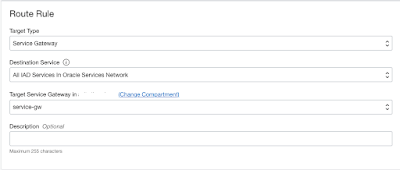
In the private subnet where the application is running, there would be an attached route table, and in that table, we need to add a route rule saying the OCI service calls need to be routed through the service gateway we had created in the previous step.


3) Secure Egress Rule

In that particular subnet we need to allow traffic from the subnet to the OCI service, to do so we will add a stateful Egress Rule in the security list of the subnet


After these steps function should be able to reach out desired OCI service and run.

References:


Wednesday, January 12, 2022

How to connect Java a program to Oracle Autonomous Database over TLS without wallet

In this blog post, we will discuss how to connect Java a program using JDBC thin driver to Oracle Autonomous Database over TLS without a wallet.

With TLS support we can now connect to ADB without the credential wallet.

Part 1: We need to configure ADB for TLS to get the TLS connection string.

a) For the ADB we want to connect over TLS, In the Autonomous database details page, we need to set Mutual TLS authentication (mTLS) as not required. 


b) Then from the database connection page (we can navigate to it by clicking on DB connection button in the ADB console) chose "TLS" as TLS authentication and copy the connection string for desired TNS name. In this example, I had copied demodb_medium


Part 2: Java program which uses the above connect string in jdbc to execute sql statements.

Prereq : ojdbc8.jar and ucp.jar

I have used JDK 11 in this eample

package demo;

import java.sql.*;
import java.util.Properties;

public class ADBSharedTLSConnect {
private static String atps_tls = "(description= (retry_count=20)(retry_delay=3)(address=(protocol=tcps)(port=1521)(host=adb.ap-mumbai-1.oraclecloud.com))(connect_data=(service_name=rks9000p5ge4_demodb_medium.adb.oraclecloud.com))(security=(ssl_server_dn_match=yes)(ssl_server_cert_dn=\"CN=adb.ap-mumbai-1.oraclecloud.com, OU=Oracle ADB INDIA, O=Oracle Corporation, L=Redwood City, ST=California, C=US\")))";
private static String db_url = "jdbc:oracle:thin:@" + atps_tls;
private static String dbUser = "admin";
private static String dbPwd = "test@ATP122245";

public static void main(String[] args) {
System.out.println("Connecting to ATPS over TLS...");
ResultSet rs = null;
Statement stmt = null;
Connection con = null;
try {
Class.forName("oracle.jdbc.driver.OracleDriver");
Properties props = new Properties();
props.setProperty("user", dbUser);
props.setProperty("password", dbPwd);
props.setProperty("oracle.jdbc.fanEnabled", "false");
con = DriverManager.getConnection(db_url, props);
stmt = con.createStatement();
rs = stmt.executeQuery("select sysdate from dual");
while (rs.next()) {
System.out.println(rs.getString(1));
}
System.out.println("Demo Over...");

} catch (Exception e) {
System.out.println(e);
} finally {
try {
if (rs != null) {
rs.close();
}
if (stmt != null) {
stmt.close();
}
if (con != null) {
con.close();
}
} catch (SQLException e) {
e.printStackTrace();
}
}
}
}

atps_tls is the one that I had copied from part 1 step b.

I have used oracle.jdbc.fanEnabled property as false, without this configuration there was an error 

SEVERE: attempt to configure ONS in FanManager failed with oracle.ons.NoServersAvailable: Subscription time out

Although query was getting executed.

Some useful links

1. JDBC connection without wallet

2. Update your Autonomous Database Instance to Allow both TLS and mTLS Authentication

3. View TNS Names and Connection Strings for an Autonomous Database Instance

4. Source Code in git

Monday, July 19, 2021

How to Connect a Go program to Oracle Autonomous Database

In this blog post, we will see how to connect Oracle Autonomous Database in Go programming language. This can be divided into three parts.

Part 1) We need to download Autonomous Database client credentials.  More details

In the Autonomous database OCI console, open to the service console of the DB which we need to connect. There in the Administration tab, we will find the option to download the client credentials.


 Once It is downloaded, unzip the same to a directory of choice.

Part 2) To connect to the database we need the database user, password, and the connect string.

We can use the admin user, which was provided as part of the database provision, or any other database user. Here we need to form the connect string.

example: protocol://host:port/service_name?wallet_location=/my/dir&retry_count=3&retry_delay=20

We need to form our connect string for the autonomous database we want to connect. We will get details in the tnsnames.ora file which is part of the zip we had downloaded in above Part 1.

There we will find many connection services (more details about them), We can pick the one we want to use for our connection.

example: 

db202107181649_medium = (description= (retry_count=20)(retry_delay=3)(address=(protocol=tcps)(port=1522)(host=adb.ap-mumbai-1.oraclecloud.com))(connect_data=(service_name=iro8q5fzknp5ge4_db202107181649_medium.adb.oraclecloud.com))(security=(ssl_server_cert_dn="CN=adb.ap-mumbai-1.oraclecloud.com, OU=Oracle ADB INDIA, O=Oracle Corporation, L=Redwood City, ST=California, C=US")))

Now by referring to this we can create our connection string like below.

tcps://adb.ap-mumbai-1.oraclecloud.com:1522/iro8q5fzknp5ge4_db202107181649_medium.adb.oraclecloud.com?wallet_location=/Users/pallab/tool/wallet_DB/

The wallet_location is the path where we had unzipped our client credentials in above Part 1.

Part 3) Now let's write our go code.

We will use godror package to connect. 

Install godor # go get github.com/godror/godror

We need runtime dependency for Oracle Client libraries, We can download the free basic or free light version from https://www.oracle.com/database/technologies/instant-client/downloads.html.

package main

import (
"database/sql"
"fmt"

_ "github.com/godror/godror"
)

func main() {
connectToADb()
}

func connectToADb() {
fmt.Println("Connecting to Oracle Autonoumus database !!!")
db, err := sql.Open("godror", `user="admin" password="testPwd"
connectString="tcps://adb.ap-mumbai-1.oraclecloud.com:1522/iro8q5fzknp5ge4_db202107181649_medium.adb.oraclecloud.com?wallet_location=/Users/pallab/tool/wallet_DB/"
libDir="/Users/pallab/tool/instantclient_19_8/"`)
if err != nil {
fmt.Println(err)
return
}
defer db.Close()

rows, err := db.Query("select 'hello' from dual")
if err != nil {
fmt.Println("Error running query")
fmt.Println(err)
return
}
defer rows.Close()

var resData string
for rows.Next() {

rows.Scan(&resData)
}
fmt.Printf("The response is: %s\n", resData)
}

Note: In sql.open() we have passed our oracle client libraries which we downloaded and unzipped as libDir  parameter.

Useful Links

1. https://blogs.oracle.com/opal/how-connect-to-oracle-autonomous-cloud-databases

2. https://blogs.oracle.com/developers/how-to-connect-a-go-program-to-oracle-database-using-goracle

3. https://godror.github.io/godror/doc/installation.html


Monday, August 10, 2020

Hosting a static website on Oracle Object Storage

We can use Oracle cloud Object Storage to host a static website. Static web pages can contain client-side technologies such as HTML, CSS, and JavaScript. They cannot contain dynamic content such as server-side scripts like PHP, JSP or ASP.NET.

Step 1:

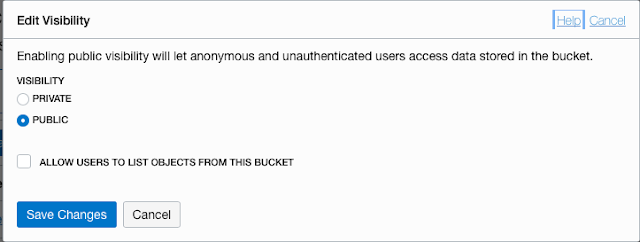
We need to create a public bucket and upload the static website contents. Once the bucket is created edit the visibility to give public access.  


Step 2:

Upload the files, here is the trick. Object storage doesn't support the hierarchy of folder structure. So we have to name each file based on its path.
For example, we have a index.html that has a link to the file page-1.html inside the pages folder.
We have to upload index.html as index.html and page-1.html as "pages/page-1.html". So that links will work.
 
I know this can be tedious since a website contains hundreds of html files, images, css and javascript. So I have automated this process. 

Upload Tool

It can be cloned by git or download as a zip (https://github.com/pallabrath/myexpjava) and then unzip

1. Move to the oci-os-static-web-upload-util directory.
2. To run the script we need node and npm to be installed in our environment.
3. Required inputs for this tool need to be configured in upload-config.json.
{
    "webdir" : "/Users/pallab/mylab/oci-os-static-web",   # This is the path of the static web need to be uploaded
    "index" : "index.html",                               # Its the index/home page of your website 
    "configurationFilePath" : "~/.oci/config",            # OCI credential configuration
    "configProfile" : "DEFAULT",                          # OCI credentail config profile 
    "comaprtmentOCId" : "ocid1.compartment.oc1......",    # OCI compartment OCID where we want to upload
    "bucketName" : "myexpdemo"                            # bucket name to be created
 } 

Example :

[DEFAULT]
user=ocid1.user.oc1..<your_unique_id>
fingerprint=<your_fingerprint>
key_file=~/.oci/oci_api_key.pem
tenancy=ocid1.tenancy.oc1..<your_unique_id>
customCompartmentId=ocid1.compartment.oc1..<your_unique_id>
How to create OCI API signing key


4. Once the credentials are set and inputs are provided in upload-config.json. We are all set to run the util.


This will create a bucket with visibility public and publicAccessType = ObjectReadWithoutList.
It will upload all the files in the user-selected folder (mentioned as webdir in upload-config.json) to the bucket. 
The util will print the url of the index file. This will be the website homepage url.

Custom Domain

We can configure this as a http redirect or url forwarding to use the custom domain. 


Sunday, May 10, 2020

Run a Spring Boot application on OCI Compute Instance

In this article, we will see how to deploy a spring boot application in Oracle cloud compute instance.

Creating a new Spring Boot app and running it locally


We will create a spring boot app and test locally. 
start.spring.io can be used to start. Or there is a sample Hello World project I have created can be referred https://github.com/pallabrath/myexpjava/tree/master/spring-boot/spring-web-rest-demo

package myexpjava.demo; import org.springframework.stereotype.Controller; import org.springframework.web.bind.annotation.GetMapping; import org.springframework.web.bind.annotation.ResponseBody; @Controllerpublic class DemoController { @GetMapping("/hello") @ResponseBody public String sayHello() { return "Hello World !!!"; } } ./gradlew bootRun This command will run the application and we can test the same in any browser in the url http://localhost:8080/hello/ It should print Hello World !!! in browser

Creating an OCI compute instance and deploy the app.


We will try to deploy this app directly to a single OCI compute instance and we will run it. 
For this example, we have used the standard Oracle-Linux-7.8 image.
To create a compute instance in OCI console, we need to navigate compute and create instance. To access the instance we need ssh keys, to genarte the same please refer https://docs.cloud.oracle.com/en-us/iaas/Content/Compute/Tasks/managingkeypairs.htm 

Once the compute is ready. We need to install Java, as our Spring Boot App requires a java environment to run.
1. ssh to compute instance
ssh -i ~/.ssh/oci_compute opc@<public ip> of the compute instance>
2. Install java in the compute instance, for this example jre is enough.
sudo yum install jre-12.x86_64
3. Configure the firewall to open port 8080, as our app will run in 8080
sudo firewall-cmd --zone=public --permanent --add-port=8080/tcp
sudo firewall-cmd --reload
Make a directory where we will copy our spring app
mkdir spring-app/


4. Network configuration to allow Internet traffic to our compute instance.
     a) We need an internet gateway configured in the VCN where the compute instance belongs
     b) Route table entry to allow the traffic through the internet gateway

    c) Security Ingress rule needs to be added to allow traffic. 


5. Copy our Spring Boot app from laptop to compute instance and run.
./gradlew clean build This will build and create the spring-web-rest-demo-1.0.jar in ./build/libs
To copy the same to our compute instance
scp -i ~/.ssh/oci_compute build/libs/spring-web-rest-demo-1.0.jar opc@<public ip>:spring-app/
Now ssh to the compute and run the app
ssh -i ~/.ssh/oci_compute opc@<public ip> of the compute instance>
java -jar spring-app/spring-web-rest-demo-1.0.jar

Our spring app should run in port 8080. If all the configs are correct 
we should able to see Hello World !!! in the browser, by trying compute's 
http://<public ip>:8080/hello
If you don't see please revisit step 3 and 4   

Wednesday, February 12, 2020

Connecting Google cloud SQL from App engine.

Google cloud platform support PHP application in its app engine. App Engine is an elastic container it automatically scales up and down based on the traffic.

Here is the https://cloud.google.com/appengine/docs/standard/php7/quickstart explaining how to deploy PHP application into GCP app.

The scope of this article is how to connect to the cloud sql in your PHP from app engine. To deploy into app engine we need to configure some meta information in app.yaml
If we are connecting by dsn we don't need any special configuration. we can refer to the database directly like
mysql:unix_socket=/cloudsql/<MY-PROJECT>:<INSTANCE-REGION>:<MY-DATABASE>;dbname=<my_db>

I am assuming both your app engine and cloud database in the same project. Else we have to explicitly give access.

$dbdsn = "mysql:unix_socket=/cloudsql/<MY-PROJECT>:<INSTANCE-REGION>:<MY-DATABASE>;dbname=<my_db>";
$conn = new PDO($dbdsn, $username, $password);

We can add the dsn in app.yaml read as an environment variable.

In app.yaml

env_variables:
  DB_DSN: mysql:unix_socket=/cloudsql/<MY-PROJECT>:<INSTANCE-REGION>:<MY-DATABASE>;dbname=<my_db>
DB_USER: my-db-user
DB_PASS: my-db-pass
DB_NAME: my_db 
DB_SERVER: my_server

And in the code

$dbdsn = getenv('DB_DSN');
$username = getenv('DB_USER');
$password = getenv('DB_PASS');

$conn = new PDO($dbdsn, $username, $password);

If we want to do tcp connection by providing host and port

$conn = new mysqli($servername, $username, $password, $dbname);

Then app.yaml we have to add 

beta_settings:
  cloud_sql_instances: <INSTANCE_CONNECTION_NAME>=tcp:<PORT>

And in the code $servername= 172.17.0.1:<PORT>;